Action&Link Wiki
"The secret of getting ahead is getting started." – Mark Twain
1. Preparation Guide
1.1 Product Checklist
- Portal Motion Controller: Core signal reception and processing unit.
- Phone Stand: Used to stably position your motion capture device during gameplay.

Figure 1 - Product Checklist
1.2 User-Provided Equipment
Gaming Platform
- PC: Windows, macOS
- Gaming Console: Nintendo Switch
- Note: PlayStation series consoles are currently not supported.
- More Platforms: Mobile/iPad/Cloud gaming, etc. Please refer to sections 4.3-4.5
Motion Capture Device
iOS Devices:
- Model Requirements: iPhone 11 and above; iPad 8th generation and above, or iPad models with A12 Bionic chip or above.
- System Requirements: iOS 15.0 or iPadOS 15.0 and above.
Android Devices:
- System Requirements: Android 10.0 and above. (HarmonyOS Next is currently not compatible)
- Performance Recommendation: For smooth algorithm operation, devices with Qualcomm Snapdragon 888 or equivalent performance processors are recommended.
Action&Link App
Please scan the QR code below or visit the official download page to get the latest version of the App.
Official Download Page: https://actionandlink.com/app-download/
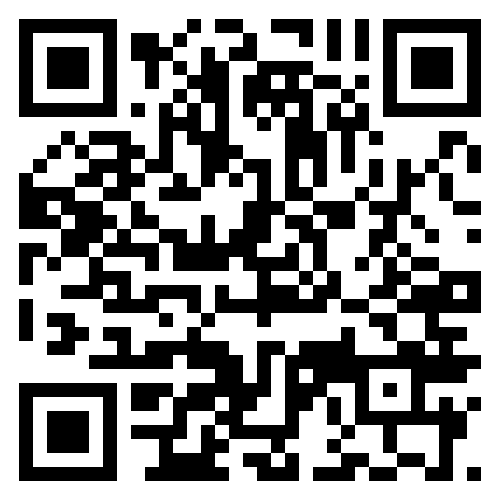
Scan QR code to download Action&Link App
1.3 Important Notes
Please read and follow the guidelines below before use to ensure safety and optimal experience.
- Space Requirements: Ensure there are no obstacles in the gaming area. A circular area with a radius of at least 1.5 meters is recommended.
- Optimal Recognition Environment:
- Clothing: Wear fitted clothing and avoid accessories that cover key joints like wrists and ankles (such as bracelets, watches) or clothing that affects silhouette recognition (such as long skirts or oversized jackets).
- Environment: Use in a well-lit environment with a simple background. Avoid backlighting (strong light source behind you) or cluttered backgrounds.
- Positioning: During gameplay, try to keep your body in the center of the camera frame and avoid deviating significantly from the initial calibration position.
- Health and Safety:
- This product may involve intense physical activity. If you experience any physical discomfort during gameplay, stop immediately and consult a medical professional.
- Do not use this product if you have a history of conditions such as hypertension, heart disease, diabetes, or other conditions that make intense exercise unsuitable.
- Minor Usage: Minors must use this product under the supervision and accompaniment of a guardian.
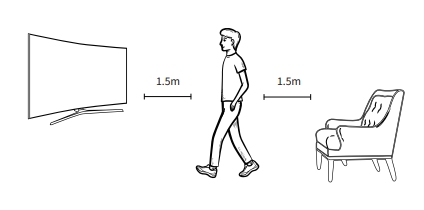
Figure 2 - Spatial Distance Illustration
2. Quick Start Guide
Follow these steps to quickly start your motion gaming journey~
1. Connect Controller
Plug the Portal into a USB port on your PC or gaming console.
2. Launch Game
Open the game you want to control with motion on your gaming device.
3. Install and Open App
Make sure you have successfully installed the "Action&Link App" on your phone or tablet.
4. Device Pairing
Open the App, it will automatically search and prompt you to connect the Portal. Follow the in-app instructions to complete pairing.
Tip: Make sure your phone is not on silent mode and turn up the volume so you can hear the voice prompts.
5. Position Capture Device
- Position your phone or tablet facing you, stably placed at approximately waist height. Using the included phone stand is recommended for optimal stability.
- To ensure the camera can capture your full body, maintain at least 1.5 meters of horizontal distance between you and the capture device.
6. Start Calibration
Follow the App's on-screen prompts to complete calibration. Calibration is a crucial step to ensure accurate action recognition. Turn off silent mode and turn up the volume, listen carefully to the voice prompts.
Step 1: Full Body Calibration
- Adjust your position to ensure your full body appears in the center of the camera frame (the frame indicator in the App will turn green).
- Raise both arms horizontally to your sides.
- Open both palms facing the camera (make a gesture similar to "waving" or showing the number "5").
- Hold this position until you hear the next voice prompt.
Step 2: Gaze Calibration
- Continue holding the previous position.
- After hearing the voice prompt, turn your gaze toward the game screen.
- After confirming the gaze direction, make fists with both hands simultaneously. To improve recognition success, wrap your thumbs inside your other four fingers.
- After successful calibration, you can lower your arms and start gaming.
2.1 Device Connection
Please open the App and follow the in-app prompts to connect the Portal. Remember to turn on sound and don't mute it.
3. Actions and Action Sets
Introduction
An "Action Set" is a preset mapping scheme that binds your body movements to keyboard/controller commands in games. For example, in a PC game's action set, the "walking in place" action might be mapped to the W key, allowing you to control character movement forward.
Community Sharing
You can download action sets shared by other players in the community for specific games. Currently supported popular games include "Genshin Impact", "Black Myth: Wukong", "JX3", "Where Wind Meets", "The Legend of Zelda", "Zenless Zone Zero", "Stellar Blade", and more.
Custom Creation
If there's no action set for the game you want to play in the community, you can create one yourself in just a few minutes. For specific methods, please refer to How to Create a New Action Set.
3.1 All Actions Explained
You can go to the App's [Settings] -> [Action Library] page, select specific actions to enable, disable, or adjust their parameters.
3.2 How to Create a New Action Set
- Create a new action set and name it, select the corresponding game;
- Select an action;
- Bind a keyboard key/controller button to that action (e.g., "Spacebar");
- Repeat this process until all necessary operation mappings are complete;
- Save and apply the action set.
3.3 More Advanced Settings
How to Adjust Action Sensitivity?
If you find an action (such as "walk") difficult to trigger or too sensitive, you can go to [Action Set Settings Page] -> [Select Action Category (e.g., Lower Body Actions)] -> [Select Specific Action (e.g., Walk)] -> [Adjust Sensitivity].
Note: Increasing sensitivity will lower the trigger threshold but may increase the probability of false recognition.
How to Adjust Vertical View?
Method 1: Bind an Action such as Head Movement:
- Go to [Action Set Settings Page] -> [Head Actions] -> [Head Up/Down].
- Find the "Mouse Movement" setting at the bottom of the page.
- Adjust the Y-axis speed slider: slide right to increase upward view speed, slide left to increase downward view speed.
Method 2: Enable Hand-Controlled Mouse:
- Go to [Action Set Settings Page].
- Enable the "Hand-Controlled Mouse" feature.
- After that, you can directly control the mouse through hand movement to adjust the view.
3.4 Game-Specific Action Set Guides
Community Sharing
You can download action sets shared by other players in the community for specific games. Currently supported popular games include "Genshin Impact", "Black Myth: Wukong", "Where Wind Meets", "The Legend of Zelda", "Stellar Blade", and more.
4. Platform Connection Guide
4.1 Switch Connection Tutorial
5. Frequently Asked Questions
Which games can I play?
A: Theoretically, you can play any game on platforms that support external keyboard/mouse or controllers, such as PC, laptops, Switch console, tablets, mobile phones, etc. (PlayStation is currently not supported). Games that currently have corresponding action sets in the community include Genshin Impact, Black Myth, Where Wind Meets, Zelda, Zenless Zone Zero, Stellar Blade, World of Warcraft, Horizon, Hogwarts Legacy Switch version, Stardew Valley Switch version, Sky: Children of the Light, and some Poki web mini-games. For games that don't have community action sets yet, you can spend a few minutes creating one yourself (see "How to create a new game action set?" below). You can also share your created action sets with the community.
Is there significant latency?
A: Latency is mainly determined by the following factors: 1. User reaction time to perform the corresponding action; 2. App algorithm recognition time for the user's action; 3. App transmission of control signals to the controller. For the first point, new users may not be familiar with motion control, so reaction time might be slightly longer, but after some practice and adaptation, reaction time can be reduced to some extent. Additionally, some actions inherently require more time to complete than pressing a keyboard key. For the second point, the CPU performance of your phone or tablet affects recognition time - better CPU performance means shorter recognition time. The surrounding environment also affects recognition, so try to use it in an environment with a simple background and adequate lighting. For the third point, transmission latency is similar to Bluetooth keyboard/mouse, which is very minimal.
Why can't I complete calibration?
A: First, please turn off silent mode and turn up the volume - there will be voice prompts during calibration. Calibration consists of two steps:
- Full Body Calibration: Ensure your full body is in the center of the frame (the figure turns green), raise both hands to your sides, open palms facing the camera, making a gesture like showing the number 5.
- Gaze Calibration: Keep the position from step 1, when you hear the voice prompt for gaze calibration, look at the game screen, then make fists with both hands. Try placing your thumbs inside your other four fingers for easier recognition.
Why does forward movement keep stopping?
A: We hope users can get some exercise while gaming, so by default, the "walk" action requires the leg to be lifted a certain height off the ground (10 cm or more). Of course, the App allows you to adjust action recognition sensitivity. If you want to lower the leg lift height slightly, you can increase the "walk" sensitivity. Note that increasing sensitivity may increase the probability of false recognition.
The specific setting path is: Action Set Settings Page → "Lower Body Actions" → "Walk" → Adjust Sensitivity.
What is an action set?
A: An action set contains a group of actions and which keyboard/controller buttons each action corresponds to. For example, when playing RPG games on PC, character movement is usually controlled by WASD keys. In an action set, the "walk" action might correspond to the W key, so when you perform the "walk" action (walking in place) in front of the camera, you can control the game character to move forward. An action set typically contains all or part of the operations for the corresponding game.
How do I adjust the view up and down?
A: Generally, PC games control view rotation through mouse movement. There are two ways to adjust the view up and down using the Action&Link motion controller:
- Method 1: First, select an action to correspond to view up/down, such as head up corresponding to view up. Go to Action Set Settings Page → "Head Actions" → "Head Up", scroll to the bottom of the page to set Mouse Movement → Adjust Y-axis speed. Slide the slider to the right of the midpoint to increase upward view speed - the further right, the faster the upward view speed. To set view down, slide to the left of the midpoint.
- Method 2: Go to Action Set Settings Page, enable the "Hand-Controlled Mouse" feature, which allows you to adjust the view through hand movement.